 Everygen
Everygen turns little questions into learning stories
Create children's educational videos with Everygen, the AI video agent workspace for parents, teachers and storytellers. Start with one learning goal, develop a visual story, and review each scene before sharing it with little learners.

Give Everygen a question worth exploring
Everygen is an AI video agent workspace for adults making children's educational videos. Start with a question a child might ask: why a seed grows, how shadows change, or what happens when we share. Give the lesson an audience, one learning goal and a simple idea to demonstrate. That brief becomes the anchor for your Everygen project.
Use the Everygen editor to name the concept, outline the action and set the visual style. A counting story can show five seeds placed one at a time; a reading scene can pair a familiar object with a clearly checked word. Prefer a brief moment that a child can describe afterwards. The examples here are starting points, ready for your own learning objective.
Before generating, record what the child should notice and what you will ask next. Everygen storyboards let you save those decisions beside individual shots, reuse a character reference and keep revisions organised. You can adapt the same approach to a family story, a classroom introduction or a short practice activity. Curriculum choices and factual checks stay with the parent or teacher.
Plan a storyboard with Everygen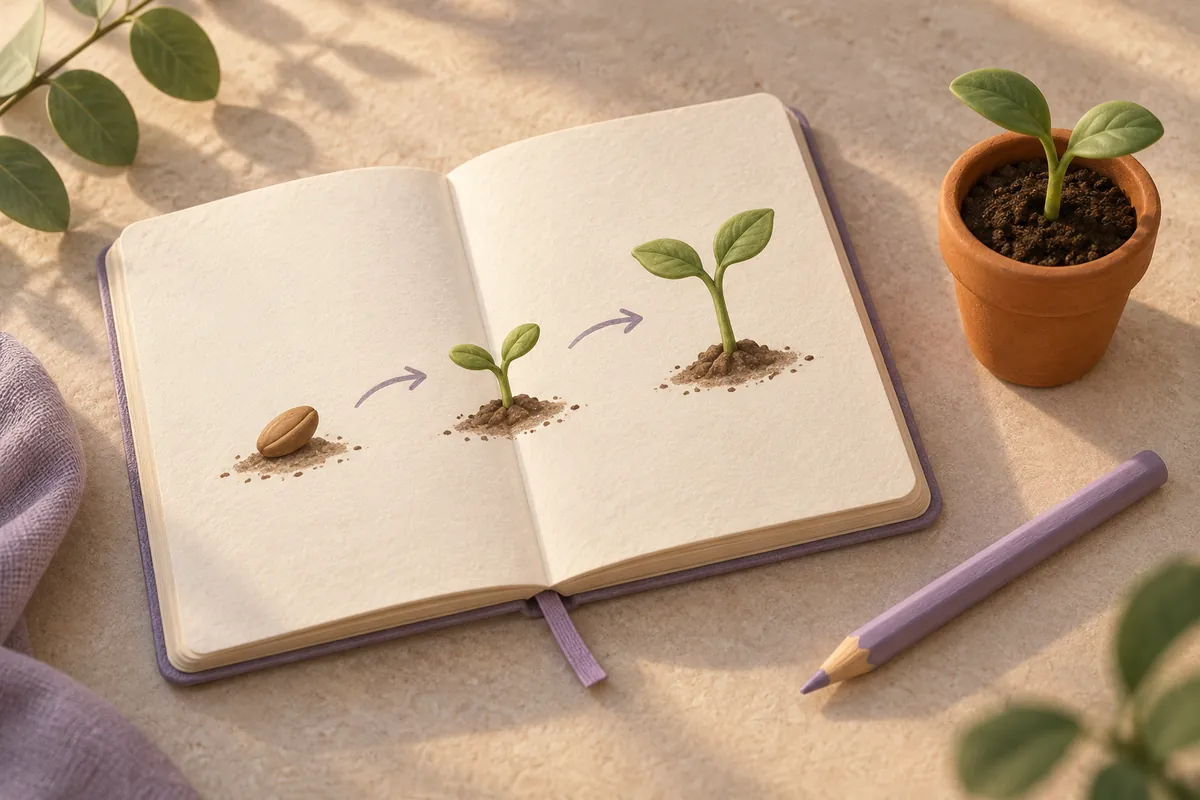
Make the lesson visible with Everygen
With a lesson brief in place, use Everygen to develop images and short video scenes. A recurring fox, robot or imaginary explorer can give the story a visual thread without introducing a child's real identity. Build a reference image first when appearance matters, then describe one visible action for each shot. A planting lesson might move from seed to sprout, with a separate view showing what the character does.
The Everygen workspace offers five image models and five video models, with options that follow the model you choose. Set the frame, duration and available audio controls for the current scene. Image references can help guide appearance when that mode supports them. Keep narration brief and captions easy to read; check the actual words in the result rather than assuming a prompt guarantees accurate text.
Save useful references in Everygen Assets and return to the same brief for the next version. In the storyboard, order the shots and generate them deliberately, checking each result before moving on. Everygen keeps source files, task history and outputs together so you can compare changes. The resulting clips remain editable ingredients for your lesson; you decide their final sequence, pace and presentation.
Create a learning sceneReview your Everygen story before sharing it
Learning stories need a careful final watch. Review every Everygen scene as a parent, teacher or creator: does the picture show the intended idea, do the spoken words match the lesson, and could a child follow what happens? Check counts, letter shapes, labels and cause-and-effect examples against reliable material before you share the video. A polished illustration alone does not verify an explanation.
Use the Everygen storyboard to check continuity across scenes. Watch for a character that changes appearance, an object that vanishes, or an action that reverses between shots. Read any narration and captions in full, including words that are easy to mishear. Leave enough time for a child to look, think or answer a question. You can revise one scene while keeping the rest of your plan.
Keep the reviewed version and its source references in Everygen Assets. A teacher can reuse the visual style for another classroom topic; a parent can return to a character for the next family learning story. Download the files you want and prepare the final presentation for the device or setting where it will be watched. Everygen supports the creative process; the adult decides when a lesson is ready.
Review files in Everygen Assets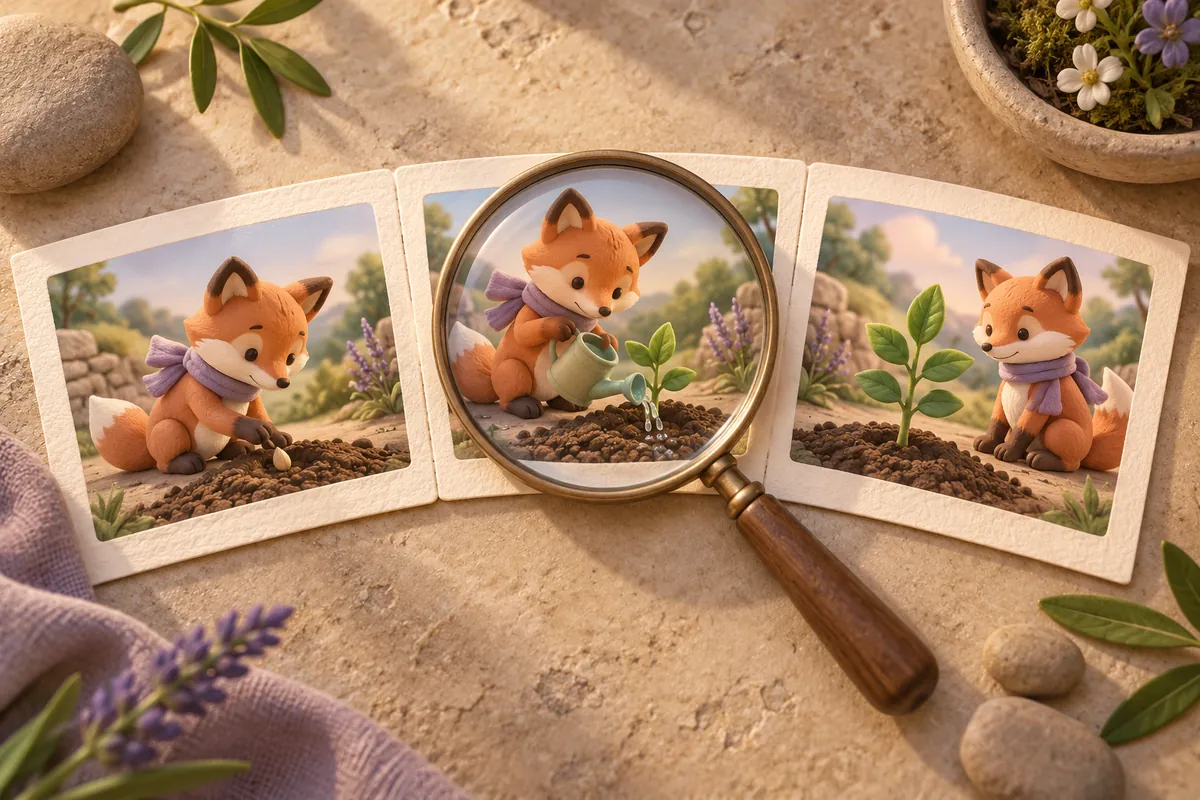
Choose your next step with Everygen
These Everygen tools support the same learning story: develop a scene, animate a reference or prepare a file. Each tool opens its own focused workspace.
How the Everygen learning video agent works
- 1
Plan the learning moment
Tell Everygen the audience, topic and one thing to notice. Use a lesson brief to describe the action, character and next question. Save the shot plan in your storyboard so each scene has a purpose before generation.
- 2
Create one scene at a time
Choose an image or video model in Everygen and check its available controls. Review the credit estimate, then generate a scene. Keep useful references and compare revisions instead of changing every part of the lesson at once.
- 3
Review, save and share
Watch the complete scene and verify its facts, wording and pacing. Keep the reviewed files in Everygen Assets, download the versions you need and prepare your final lesson presentation. An adult decides what is suitable to show.